Managing servers spread across on-premises datacenters, edge locations, and multiple cloud providers can be a logistical nightmare. Microsoft Azure Arc aims to solve this by extending the Azure control plane to any infrastructure, allowing you to manage Windows and Linux servers from a single, unified interface.
In this article, based on insights from Microsoft MVP Jeremy Wallace and verified against official Microsoft documentation, we will explore the basics of Azure Arc server management, the onboarding process, and the powerful capabilities it unlocks for your hybrid environment.
What is Azure Arc-Enabled Servers?
Azure Arc-enabled servers allows you to manage Windows and Linux physical servers and virtual machines hosted outside of Azure—whether on your corporate network or with another cloud provider like AWS or Google Cloud Platform (GCP) .
When you connect a machine to Azure Arc, it is treated as a native resource in Azure. Each connected machine receives an Azure Resource ID, allowing it to be included in an Azure resource group alongside native Azure resources. This unified approach means you can apply standard Azure management tools, such as Azure Policy, Microsoft Defender for Cloud, and Azure Update Manager, to servers regardless of their physical location.
The Onboarding Process
Connecting a server to Azure Arc is a straightforward process that involves installing the Azure Connected Machine agent. This agent consists of several logical components, including the Hybrid Instance Metadata service (HIMDS), the machine configuration agent, and the Extension agent.
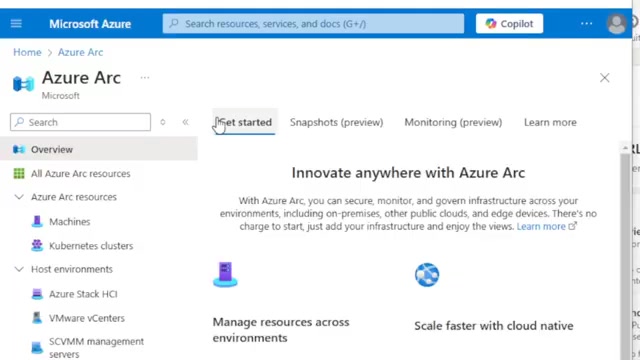
To onboard a machine, you navigate to the Azure Arc portal, select "Add/Create," and choose to add a machine. You have the option to run an installer on a specific server or generate a script for deployment at scale. For newer operating systems like Windows Server 2022 Datacenter, there is even a built-in wizard that you can run directly from the OS.
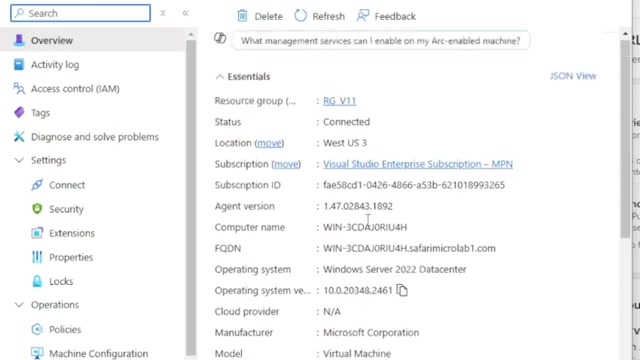
The onboarding process requires signing in with an administrative account that has the appropriate permissions on the Azure subscription. You then select the subscription and resource group where you want the machine to reside. Once connected, the server will appear in your Arc machines list with a "Connected" status.
Understanding Management Limitations and Capabilities
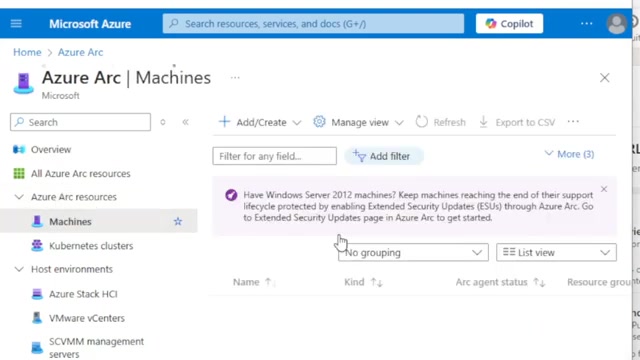
If you are accustomed to managing native Azure virtual machines, you might initially find the Azure Arc management interface somewhat limited. Native Azure VMs have a deep connection to the Azure Resource Manager, allowing for capabilities like direct restarting, rebooting, and comprehensive network data population within the portal.
In contrast, an Arc-enabled machine is simply running an agent. It could be a physical server or a virtual machine running on VMware vSphere or Hyper-V. While there are ways to Arc-enable entire virtualization environments for deeper management, standard Arc enablement inside the OS has limitations compared to native Azure VMs. For instance, you will not see the server's IP address listed directly on the overview page.
However, despite these initial face-value limitations, Azure Arc provides a robust suite of management capabilities that significantly enhance hybrid server administration.
Key Management Features of Azure Arc
Once your servers are Arc-enabled, you unlock several powerful management tools that bring cloud-native governance to your on-premises and multi-cloud infrastructure.
1. Machine Configuration and Compliance
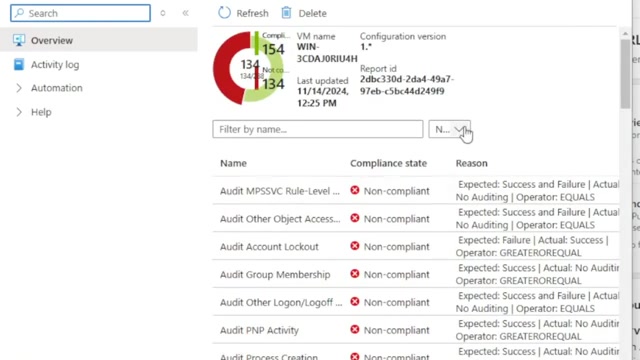
One of the most significant benefits of Azure Arc is the ability to apply machine configurations using Azure Policy. This feature allows you to audit settings inside the machine and ensure compliance across your entire fleet.
For example, if you have 50 servers distributed across AWS, GCP, and on-premises datacenters, Azure Policy can analyze every single Arc-enabled machine and report on how it aligns with your established baselines. You can create custom policies or use pre-configured ones to audit specific aspects of your server setups, such as security settings, installed software, or registry configurations.
2. Extension Management and SSH Access
Azure Arc allows you to deploy virtual machine extensions to your non-Azure servers, enabling post-deployment configuration and automation tasks. A particularly powerful extension is OpenSSH for Windows.
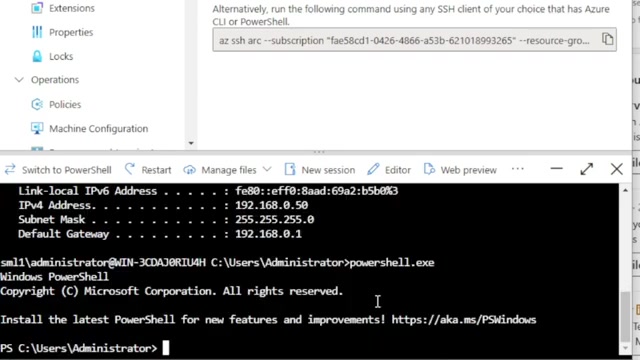
By deploying the OpenSSH extension, you gain direct command-line control over your Arc-enabled machines directly from the Azure portal browser, without requiring a public IP address or opening additional inbound ports. This secure connection is tunneled over the Arc agent.
Once connected via SSH, you can run commands like ipconfig to retrieve network information, access PowerShell, and execute scripts. This provides a workaround for some of the portal limitations; for example, while there isn't a "Restart" button in the portal, you can easily issue a restart command via the SSH terminal.
3. Azure Update Manager
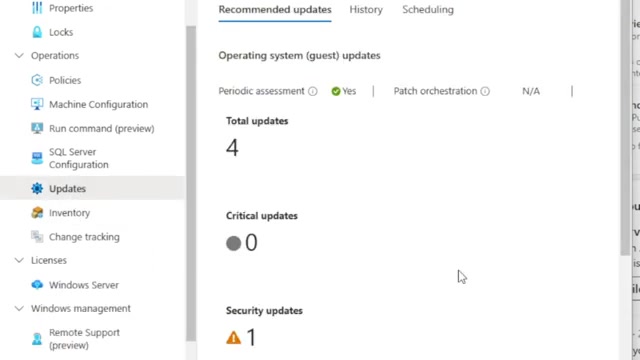
Managing operating system updates across a distributed environment is a common challenge. Azure Update Manager addresses this by allowing you to assess the update status and deploy updates to both Windows and Linux machines.
With Azure Update Manager, you can see which updates are missing from your Arc-enabled servers and schedule them to be applied during specific maintenance windows. This provides a unified approach to patch management across your entire hybrid infrastructure, all controlled from the Azure portal.
4. Change Tracking and Inventory
Azure Change Tracking and Inventory, powered by the Azure Monitor Agent (AMA), provides deep visibility into the software and configuration state of your servers.
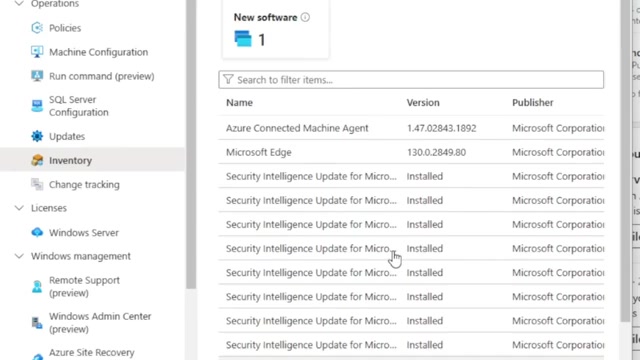
The Inventory feature gives you a comprehensive list of installed software, updates, and running services on a particular server. While you cannot start or stop services directly from this view (you would use the SSH connection for that), it provides crucial visibility.
Change Tracking records actual modifications that occur on the server over time. If configurations change, software is installed, or services are modified, these events are logged. This transparency is invaluable for troubleshooting, auditing, and maintaining the desired state of your servers across all environments.
5. Microsoft Defender for Cloud Integration
Security is paramount in a hybrid environment. Azure Arc integrates seamlessly with Microsoft Defender for Cloud, allowing you to protect non-Azure servers using Microsoft Defender for Endpoint.
You can deploy Defender for Servers directly through the Arc enablement process, ensuring that threat detection, vulnerability management, and proactive monitoring are automatically applied to all your Arc-enabled devices. While this is a paid service (available in different plan tiers), it offers immense value by unifying your endpoint protection strategy under a single pane of glass.
Windows Server Management Benefits
It is important to note that customers with Windows Server licenses that have active Software Assurance or active subscription licenses receive significant benefits when using Azure Arc. Services such as Azure Update Manager, Azure Change Tracking and Inventory, and Azure Machine Configuration are included at no extra cost beyond standard networking, storage, and log ingestion fees. This makes Azure Arc an incredibly cost-effective solution for organizations already invested in the Microsoft ecosystem.
The Wrap Up
Azure Arc transforms traditional server management by extending Azure's control plane to your on-premises and multi-cloud environments. While it may not replicate every feature of native Azure virtual machines, it provides a powerful, unified platform for governance, compliance, update management, and security. By leveraging the Azure Connected Machine agent, organizations can streamline their operations, enhance visibility, and bring cloud-native management practices to their entire server fleet, regardless of where those servers physically reside.