
How to Use Azure Tags to Take Control of Your Cloud Environment
Have you ever wondered how to keep your Azure environment organized, keep your cloud costs under control, or make sense of a growing list of resources? There is one powerful tool that is often overlooked: Azure Tags.
In this guide, we will explore what Azure tags are, why they are essential for managing your cloud environment, and how to automate their application using Azure Policy.
What Are Azure Tags?
In Azure, tags are essentially metadata labels that you can apply to specific resources, resource groups, and subscriptions . They consist of key-value pairs—you define a name (the key) and a value, and they act like sticky notes attached to your resources.
For example, if you want to track the deployment environment for your resources, you can add a key named Environment and give it a value of Production. The full key-value pair becomes Environment = Production .
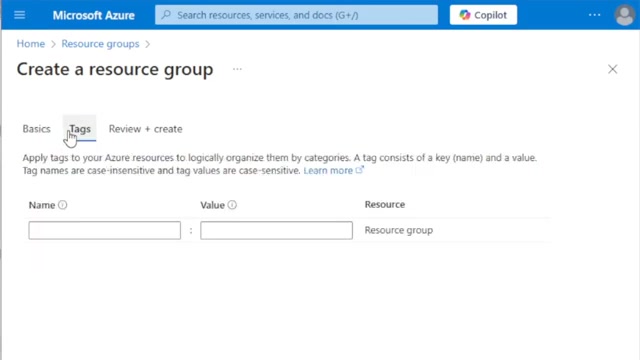
Creating a resource group in the Azure portal, showing the often-skipped Tags tab.
When creating resources in the Azure portal, you will typically see a Tags tab. Many people skip this step because they lack a tagging strategy or do not fully understand the value tags bring. However, when used correctly, tags add a tremendous amount of management capability to your Azure environment.
Important Tagging Rules and Limitations
Before diving into strategies, it is important to understand the technical boundaries of Azure tags:
The Value of Azure Tags
Tags provide value across three main pillars of cloud management: organization, cost management, and compliance.
1. Organization and Filtering
If you have multiple resources belonging to different workloads—such as a production workload and a Dev/Test lab—you can append tags to easily identify which resources belong to which use case.
By navigating to the Tags section in the Azure portal, you can select a specific tag (like Environment: Production) and instantly see all resources that share that tag. This allows you to focus solely on production resources, helping prevent scenarios where you might accidentally shut off a critical system while working in a Dev/Test environment.
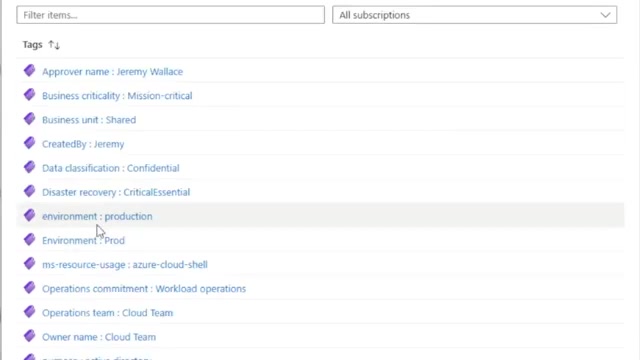
Filtering the Azure portal to show only resources with the Environment: Production tag.
2. Cost Management and Allocation
Tags are incredibly powerful for understanding your cloud costs. The default Cost Management view often breaks down spending by resource type (e.g., Virtual Machines, Storage). However, if you have virtual machines dedicated to a finance application and others dedicated to your Active Directory environment, the general cost analysis screen will not provide that specific breakdown.
By using tags, you can filter and group your costs in the Cost Management portal. For instance, you can group costs by an Environment tag to see exactly how much was spent on production versus development.
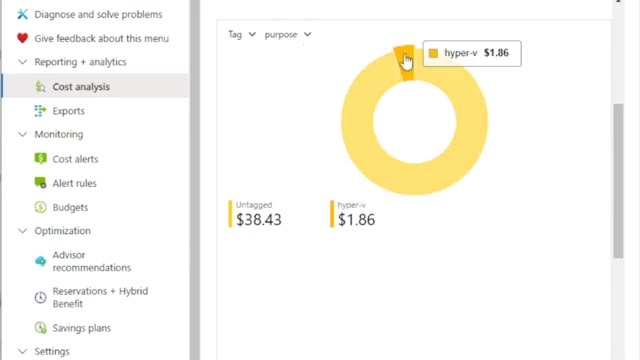
Grouping costs by tag in Azure Cost Management.
3. Compliance and Governance
Tags are a great way to ensure certain workloads remain compliant with organizational or regulatory rules. This is achieved by combining tags with Azure Policy.
For example, if you need to adhere to PCI compliance, you likely only have a specific portion of your Azure environment that is in scope. You can apply a PCI tag to those specific resources, and then filter your compliance policies to target only that tag. This ensures the PCI environment follows all necessary rules without unnecessarily restricting the rest of your cloud infrastructure.
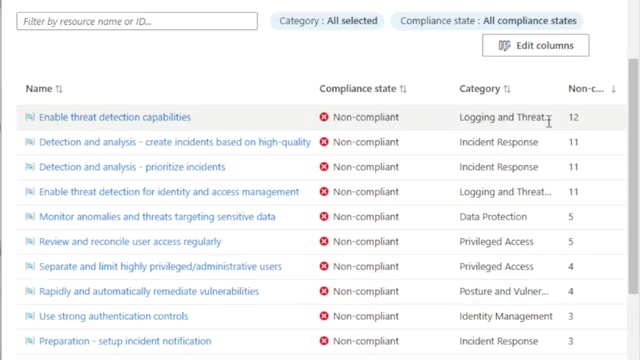
Viewing compliance states in Azure Policy.
Microsoft's Minimum Suggested Tags
To help organizations get started, the Microsoft Cloud Adoption Framework outlines foundational tagging categories and suggests a minimum set of tags that should be used throughout your environment.
These foundational categories include:
1. Functional tags: For operational management (e.g., application name, tier, environment).
2. Classification tags: For governance and security (e.g., data confidentiality, SLA).
3. Accounting tags: For cost management (e.g., department, cost center).
4. Purpose tags: For business alignment (e.g., business process, business impact).
5. Ownership tags: For accountability (e.g., business unit, operations team).
Microsoft's common tagging examples from the Cloud Adoption Framework.
Some of the most critical suggested tags include:
Automating Tags with Azure Policy
Expecting users to manually remember and type out six different tags and their exact values every time they create a resource is a recipe for failure. Manual tagging is tedious and prone to typos. Instead, you should take an automated approach using Azure Policy.
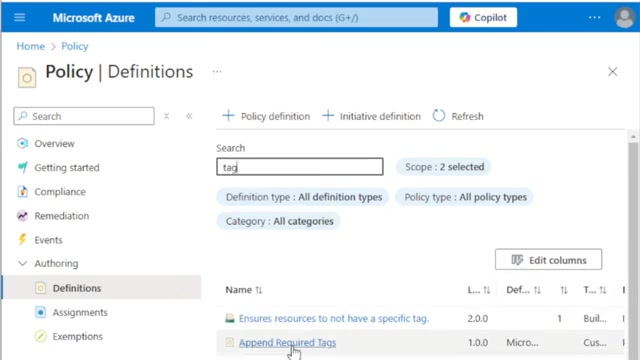
Viewing policy definitions in the Azure portal.
You can create a custom Azure Policy that automatically appends required tags to resources upon creation.
Creating an "Append Required Tags" Policy
Using the Modify effect in Azure Policy, you can check if specific tags exist on a resource. If they do not exist, the policy will automatically append them.
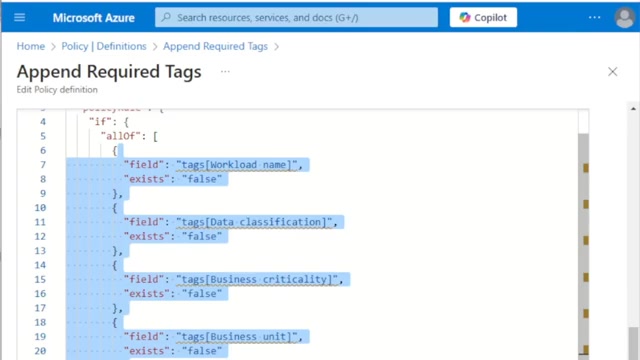
The JSON rule definition for a custom policy that appends missing tags.
Because the actual value of a tag (like the specific Workload Name) will change depending on the resource, you can configure the policy to append the required tag keys with a literal value of default.
When a user creates a new resource, they can completely skip the Tags tab. Once the deployment is complete, the policy automatically attaches the required tags with the default value.
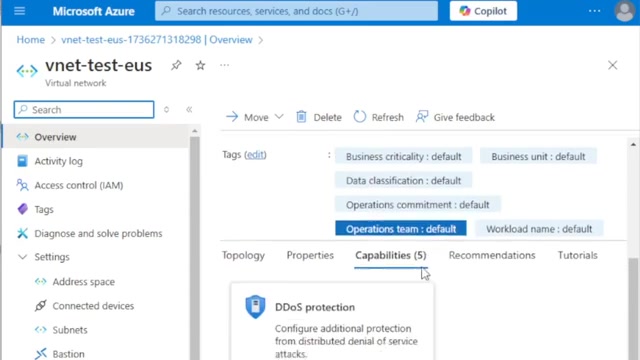
A newly created virtual network with tags automatically appended by Azure Policy.
After the resource is created, you can navigate to the resource's tags and update the default values to the correct, specific values for that workload.
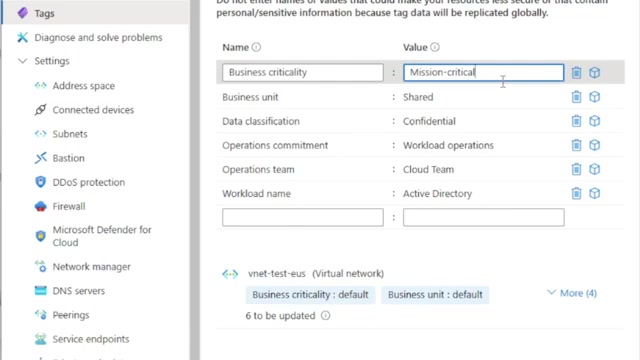
Updating the default tag values to reflect the actual workload details.
To take this a step further, you can use a separate Azure Policy to enforce acceptable values for specific tags. For example, you can restrict the Data Classification tag so that users can only select from approved values like General or Highly Confidential, preventing them from making up unauthorized labels.
Conclusion
Azure tags are a tremendously powerful tool when used correctly. They provide the foundation for cost management, governance, and automation across your Azure environment.
Take the time to figure out which tags make sense for your organization, establish a clear tagging strategy, and create the Azure Policies necessary to enforce them. Doing so will help you maintain control of your Azure environment as it grows, simplify cost analysis, and ensure clear accountability across your teams.
References
[1] Microsoft Learn: Use tags to organize your Azure resources and management hierarchy
[2] Microsoft Learn: Define your tagging strategy - Cloud Adoption Framework
[3] Microsoft Learn: Assign policy definitions for tag compliance